
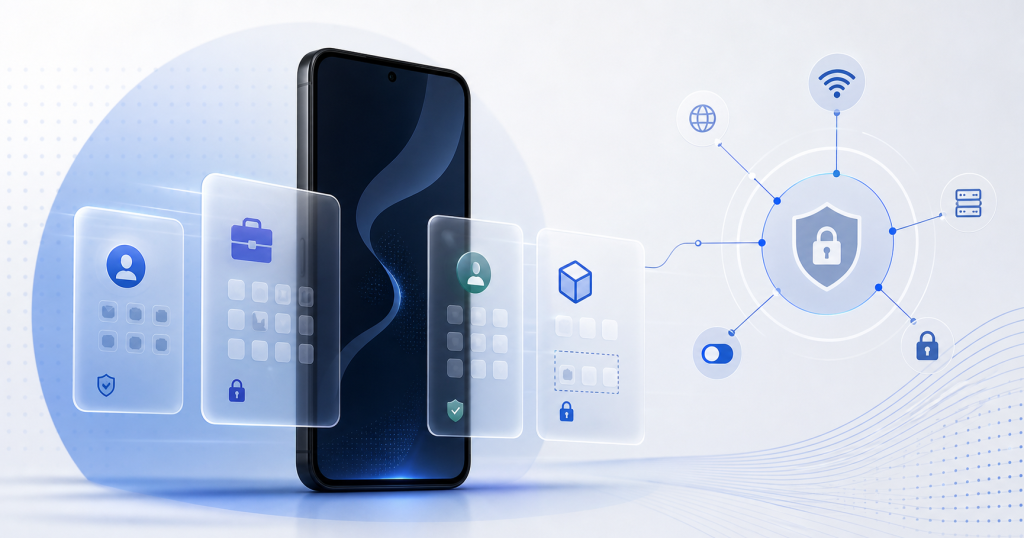
GrapheneOS is an operating system for Google Pixel phones that focuses on privacy and security. It cannot make a phone invisible or address every risk automatically. It gives you more control over apps, permissions, Google services, network access and data.
GrapheneOS suits people who want to reduce unnecessary data collection, keep work and personal activities separate, and decide which apps can access their information.
The short answer
You can use GrapheneOS as your main operating system if you are willing to give a little more attention to settings, apps and profiles. Everyday tasks such as making calls, messaging, browsing, taking photos, checking email, banking and navigation can all work normally. Compatibility depends on the individual apps and whether they require Google Play services.
Using GrapheneOS involves trade-offs. It is designed for people who value privacy, control and more secure settings.
Who this guide is for
This guide is for you if you:
- are considering switching to GrapheneOS
- want to know what it is like to use a phone running GrapheneOS every day
- work with sensitive information
- want to keep personal, work and higher-risk apps separate
- want more independence from Google’s standard Android ecosystem
What is GrapheneOS?
GrapheneOS is an Android-based operating system with additional security and privacy protections. It builds on the Android Open Source Project, adds its own security features, changes the default settings and takes a stricter approach to app permissions.
In practice, Android still feels familiar. Apps have fewer implicit privileges, stronger isolation and only the access you allow them.
GrapheneOS officially targets Google Pixel devices. Check support for your particular model before switching.
How GrapheneOS differs from standard Android
The main difference lies in the trust model. The interface looks familiar.
On standard Android, Google services are often deeply integrated into the system. On GrapheneOS, you can install Google Play as regular apps in the standard app sandbox. Coming from Google does not give Google Play services special system privileges.
According to the official GrapheneOS documentation, sandboxed Google Play runs as regular apps within a single profile, without special access to other profiles or their data. In everyday use, you can install Google services in one profile for apps that need them and keep another profile free of them.
What works in everyday use
For most basic tasks, a phone running GrapheneOS feels familiar. You can use it for:
- calls and text messages
- mobile internet
- Wi-Fi;
- the camera
- web browsing
- messaging apps
- navigation
- compatible banking apps
- apps from the Play Store if you install sandboxed Google Play
GrapheneOS also supports automatic background updates. According to the official usage guide, the system checks for updates roughly every six hours when it has a network connection. It installs them in the background and prompts you to restart when it is done. Any operating system quickly loses some of its benefits as a security tool if it goes without regular updates.
Where you may run into limitations
Most limitations depend on the particular app you need to run.
Compatibility varies for banking apps, digital signing services, corporate mobile device management (MDM), Android Auto and apps that strictly check their operating environment. Some work without any issues. Some require sandboxed Google Play. Others impose limitations through their own fraud prevention or anti-tampering mechanisms.
Before switching, make a list of your essential apps:
- banking
- Diia or other government services
- work messaging
- corporate email
- navigation
- in-car apps
- two-factor authentication (2FA)
- your eSIM or mobile carrier’s app
Test these on a device running GrapheneOS before moving everything over from your main phone.
Why use sandboxed Google Play?
Sandboxed Google Play is one of the features that makes GrapheneOS practical for everyday use. It lets you install Google Play services and the Play Store as regular apps without integrating them deeply into the system.
You may want to install it if you need:
- push notifications in certain apps
- banking apps
- apps that depend on Google Play services
- Play Store purchases or licences
- Google Maps or other Google apps
Sandboxed Google Play is optional. You can start without it and add it later in a separate profile for apps that need it.
User profiles
One practical use for GrapheneOS profiles is keeping different groups of apps apart.
For example, you could have:
- a main profile for calls, contacts and basic apps
- a work profile for email, messaging and documents
- a separate profile with sandboxed Google Play
- a temporary profile for testing higher-risk apps
This does not eliminate all risk. It keeps data separate and helps limit each app’s access to the rest of your environment.
Network privacy
GrapheneOS includes controls for Wi-Fi, cellular networks and the phone’s radios. For example, its documentation says that Wi-Fi and Bluetooth scanning to improve location accuracy are off by default. On systems where scanning is enabled, it can continue even when you think you have fully switched off Wi-Fi or Bluetooth.
GrapheneOS also offers an LTE-only mode. Disabling some older or more complex network stacks reduces the attack surface. The mode does not provide anonymity. Before enabling it, check that your carrier supports voice calls over LTE (VoLTE) reliably.
eSIM on GrapheneOS
GrapheneOS supports eSIM, but adding and managing eSIM profiles takes an extra step. According to its official documentation, basic eSIM support is built in. Adding or managing an eSIM requires a proprietary Google component that is off by default.
You can enable the component in the eSIM support settings. It works independently of Google Play. According to GrapheneOS, eSIM management does not require Google Play or send data to it, even if it is installed.
You can use an eSIM day to day. Test activation before a trip or a switch to another carrier.
Common mistakes
Expecting complete anonymity
GrapheneOS does not make you anonymous automatically. If you sign in to the same accounts and use the same phone numbers, payment cards and messaging services, those activities can still identify you.
Installing every app in one profile
Putting everything in one profile is simpler, but you lose some of the benefits of isolation. Group your apps by purpose, such as everyday use, work, Google-dependent apps and testing.
Turning off updates
Regular system updates are central to the protection GrapheneOS offers. Leave automatic updates enabled.
Assuming Google Play must be blocked or installed everywhere
GrapheneOS lets you install Google Play in a separate profile for the apps that need it, without giving it system privileges.
Forgetting to test banking apps
Check essential apps before switching, particularly those for banking, documents, work and mobile carrier services.
Checklist before switching
- Check that GrapheneOS supports your Pixel model.
- List your essential apps.
- Identify which ones need Google Play services.
- Plan profiles for personal use, work, Google-dependent apps and testing.
- Transfer your 2FA codes and backup sign-in methods.
- Test your banking apps.
- Check mobile service, VoLTE, SMS/MMS and eSIM if you need it.
- Leave automatic updates enabled.
- Test the setup for a while before moving everything over.
- Back up important data.
Who is GrapheneOS a good fit for?
GrapheneOS makes sense if you want more control over your phone and are willing to pay a little more attention to its settings. It can suit entrepreneurs, journalists, lawyers, technical specialists, volunteers, business owners and individuals who value digital privacy.
It also suits people who want to keep familiar apps while limiting their access and keeping activities separate.
Who might find GrapheneOS inconvenient?
GrapheneOS may be inconvenient if you prefer to leave settings alone, rely on an app that runs poorly on alternative Android systems, or expect everything to behave exactly as it does on standard Android.
If you expect protection without changing any habits, GrapheneOS may also disappoint. The system helps, but secure use still depends on passwords, 2FA, profiles, updates and what you do on the phone.
Conclusion
GrapheneOS works as an everyday operating system. It works best when you set it up for the way you use your phone. It gives you more control over apps, profiles, Google services and permissions, while the usual security practices still apply.
Getting started may take an ordinary user a little more effort. If you value privacy and control of your data, this approach can be easier to understand and more convenient in the long run.
FAQ
Can I use a GrapheneOS phone as my main phone?
Yes. Check your essential apps before switching.
Do Google apps work on GrapheneOS?
Many Google apps can run with sandboxed Google Play.
Does GrapheneOS require Google Play?
No. You can use GrapheneOS without Google Play, though some individual apps may need it.
Do banking apps work on GrapheneOS?
Some work normally. Some need sandboxed Google Play, and others impose restrictions through their own security checks.
Does GrapheneOS support eSIM?
Yes. Adding and managing eSIM profiles requires enabling a separate setting. Test activation before travelling or switching carriers. Sources GrapheneOS Usage Guide GrapheneOS Features