Why a phone number alone is insufficient
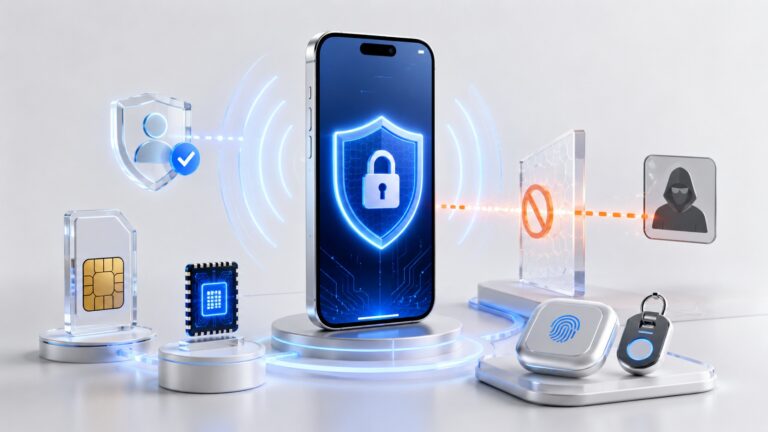
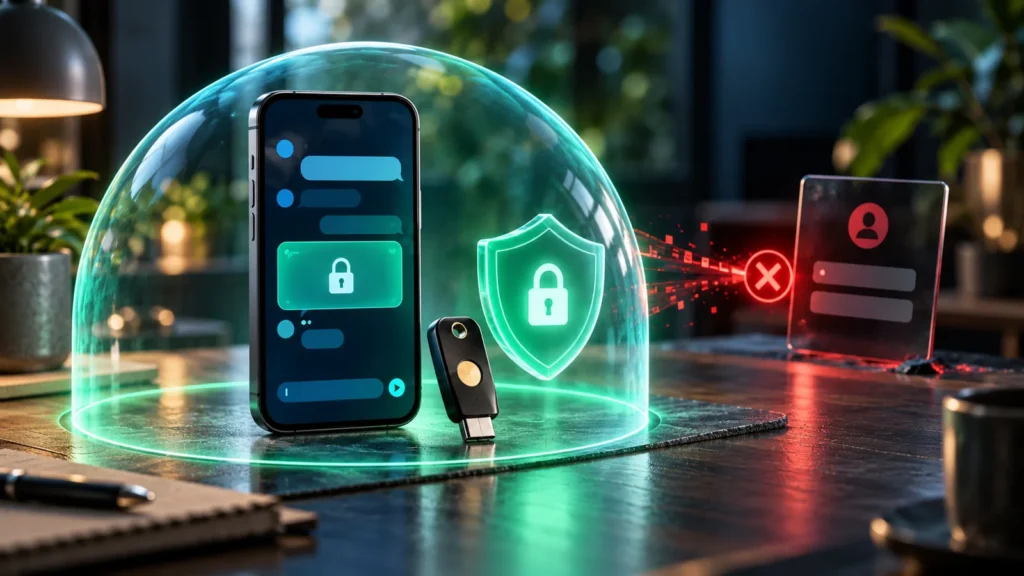
Telegram is linked to your phone number. That makes SIM security, text verification codes and phishing messages relevant to your account. Enable Two-Step Verification so that a sign-in code alone won’t give someone access.
Turn on Two-Step Verification
In Settings, open Privacy and Security, select Two-Step Verification and create a long, unique password. Add a recovery email address you can reliably access and protect that account with two-factor authentication (2FA).
Review active sessions
Open Devices regularly to review active sessions. End any old or unfamiliar sessions. If you see a device that isn’t yours, end its session, change your Two-Step Verification password and check your phone number and recovery email.
Keep sign-in codes to yourself
Telegram, your bank and support staff won’t ask you to read out a sign-in code over the phone or share it in a chat. Avoid scanning a sign-in QR code on someone else’s computer. Even if a friend asks for a code, keep it private: someone may have taken over their account.
Protect your phone number
Set a SIM PIN to protect the SIM itself. For an important number, also set a password or security passphrase with your mobile provider to reduce the risk of a SIM swap.
Conclusion
Two-Step Verification, a list of sessions you recognise and care with sign-in codes give your Telegram account much stronger protection than a phone number alone.
Put the settings into practice
Securing a Telegram account takes more than one setting. First decide what you need to protect, who could gain access and what a mistake would cost. Then check your phone number, recovery email and active sessions. Work through one change at a time and make sure it works. That is more useful than changing a dozen settings you don’t understand in a single evening. Write down the review date and how you would recover access, so you can follow the steps even under stress.
Look for risks in everyday shortcuts
A convenient way of working can save time while creating a single point of failure. Avoid sharing credentials in informal chats, and keep track of old devices, profiles and recovery methods. For personal accounts, know where to find your recovery information. For work accounts, identify who controls access and who can revoke it. If a setting affects several people, agree in advance on what each person should do if something goes wrong.
Check that your changes work
After a change, try the tasks you normally perform. Can you open the service and use your backup sign-in method? Have unexpected sessions or alerts appeared? Use your own up-to-date device and a familiar connection. If you’re unsure what changed, retrace your steps and consult the instructions. This is particularly important for email, financial services, customer data and company infrastructure.
Know the limits of each safeguard
Keep sign-in codes and sign-in QR codes private, even if someone you know asks for them. Keep your system up to date, use unique passwords wherever passwords are still required and turn on two-factor authentication. Continue to check website addresses, access requests and unusual messages. Each safeguard works best alongside others that protect you independently.
If you suspect a problem
An unfamiliar device, an unexpected sign-in, missing data or an unusual request is reason to act before you have conclusive proof. Record what happened. Start with steps you can reverse: end unfamiliar sessions, change your Two-Step Verification password and contact your mobile provider. Avoid installing apps or following links in messages claiming to offer urgent help. If needed, contact support through the service’s official website or speak to the administrator responsible.
Regular security checklist
- You review your settings on a schedule as well as after a problem.
- You know where to find critical data and sign-in information.
- You have removed old devices, ended old sessions and revoked obsolete access.
- You have tested your backup sign-in method.
- You know what to do first if you suspect an incident.
Final check
Repeat the key steps every few months and whenever you change your phone, laptop, password, provider or way of working. Check both the setting and your ability to recover access on your own without time pressure. Keep a short private list of where to find recovery information, which devices have access, who is responsible for each work service and who to contact after an incident. Leave passwords and codes out of the list. Having these details ready can save time. An effective setup needs little attention day to day, gets checked regularly and doesn’t depend on a single device, number, cloud account or person.
When to revisit these settings
Return to this checklist when you change phones, computers, phone numbers, job roles or how you store data. Review it if a service reports a breach, you lose a device or you see an unfamiliar sign-in. Check that your recovery contacts are current, older devices still need access and you can recover the account without rushing. A simple routine is enough: set a reminder every three or six months and allow ten minutes for the review. Small checks you actually repeat will serve you better than a one-time setup or a plan that exists only on paper.