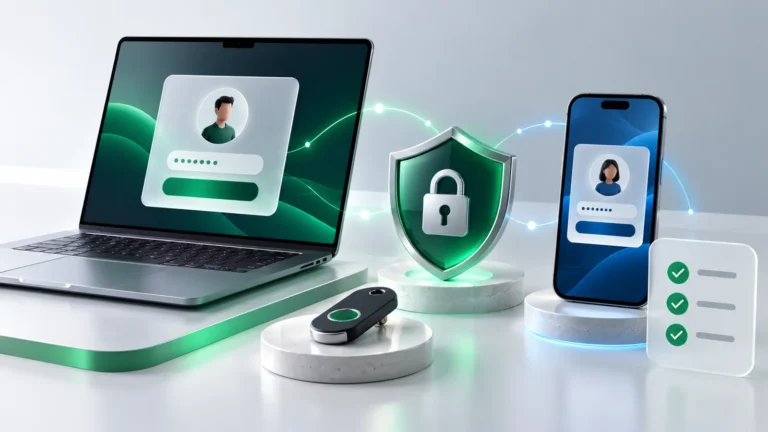

What is a passkey?
A passkey lets you sign in to an account without entering a conventional password. Your device creates a pair of cryptographic keys. The service stores the public key, and the private key is held on your phone, computer or hardware security key. When you sign in, you confirm your identity with your PIN, fingerprint or Face ID. The private key is never sent to the service during sign-in.
Why are passkeys safer than passwords?
Someone can guess a password, reuse a stolen one or trick you into entering one on a phishing site. A passkey is tied to a specific domain and will not work on a fake page with a similar address. This is useful for email, work accounts, cloud storage and password managers.
Getting started
- Choose one important service that already supports passkeys.
- Add a passkey in its security settings and keep your password for now.
- Keep a backup sign-in method, such as another device, recovery codes or a hardware security key.
- Test sign-in from your main device, then gradually add passkeys to other services.
What to keep in mind
Syncing passkeys between devices is convenient. Protect the Apple, Google or password manager account you use for syncing with two-factor authentication (2FA). Keep your existing sign-in methods until you have tested your backup access.
Conclusion
Passkeys remove a weak link in the sign-in process: a password that someone could trick you into revealing or use again elsewhere. Start with one important account and switch over gradually.
Taking a closer look at your setup
Passkey security depends on more than one setting. First decide what you need to protect, who might gain access and what a mistake could cost you. Then check your main account, how your keys sync and your backup sign-in methods. Work at a manageable pace. One change you understand and have tested is more useful than a dozen settings whose purpose is unclear. Record the date of the check and how to recover access so you do not have to rely on memory under stress.
Consider convenience and security separately
A convenient setup saves time but may introduce a single point of failure. Avoid sharing credentials in ad hoc chats, and keep track of old devices, profiles and recovery methods. For personal data, identify where your backup information is kept. For work systems, establish who controls access and who can revoke it. If a setting affects several people, agree on a procedure before an incident occurs.
Test the outcome
After a change, try a real task. Can you open the service you need? Does the backup sign-in method work? Are there any unexpected sessions or warnings? Use your own up-to-date device and a familiar connection. If you cannot explain what changed, retrace your steps and check the instructions. This is particularly important for email, financial accounts, customer data and company infrastructure.
Limits of protection
A passkey protects against phishing during sign-in. It cannot protect you from malware or someone with remote access to your screen. Keep the system updated, use unique passwords wherever they are still required, and enable two-factor authentication. Check website addresses, pay attention to permission requests and take unusual messages seriously. Passkeys work best alongside other independent layers of protection.
If you suspect a problem
An unfamiliar device, unusual sign-in, missing data or unexpected request is worth investigating before you have conclusive proof. Record what happened and start with reversible steps, such as checking your recovery codes or adding a second device or hardware security key. Avoid installing software or following links from messages offering urgent help. If necessary, contact the service through its official website or speak to the administrator responsible.
Regular checklist
- Schedule checks and repeat them after a problem.
- Know where critical data and sign-in methods are stored.
- Remove old devices and sessions and revoke obsolete access.
- Test your backup plan in practice.
- Know what to do first if you suspect an incident.
Final check
Repeat the main checks every few months and after changing your phone, laptop, password, provider or workflow. Test whether you can recover access calmly and on your own. Keep a short private list of where backup information is stored, which devices have access, who is responsible for work services and whom to contact during an incident. Leave passwords and codes off the list. Having these details to hand can cut response time considerably. A setup that you check regularly can protect you without daily attention or dependence on a single device, phone number, cloud account or person.
When to revisit your settings
Run through this checklist after changing your phone, computer, number, work role or storage arrangements. Recheck it if a service reports a breach, you lose a device or an unfamiliar sign-in appears. Are recovery contacts current? Do old devices still need access? Can you recover access without rushing? A reminder every three or six months and ten minutes for a check are enough to keep the procedure simple. Regularly performing these small checks provides more lasting protection than getting the settings just right once and leaving the plan on paper.