
Specifications and technology / Video surveillance
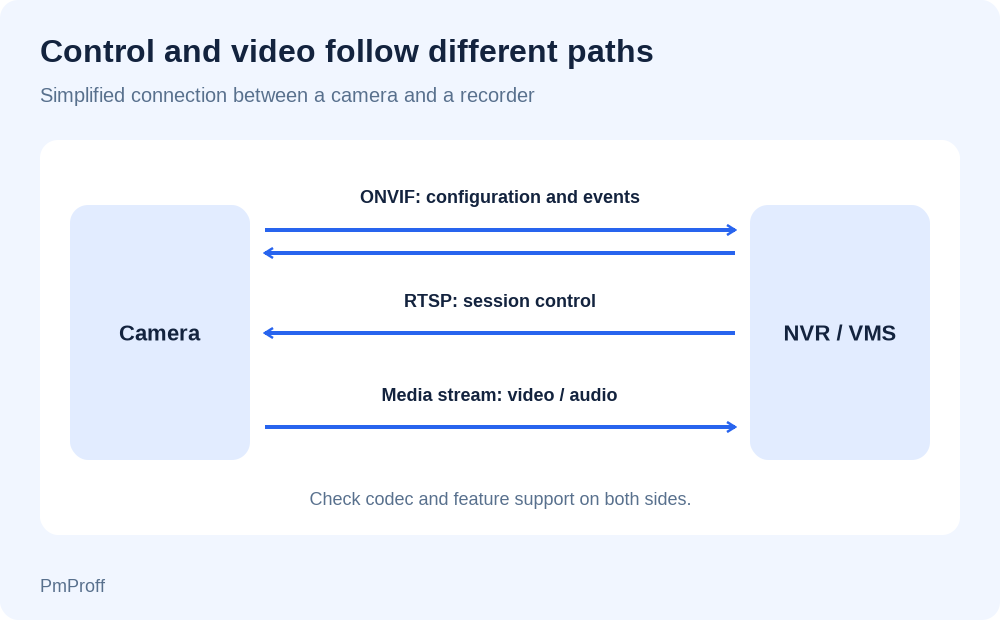
ONVIF defines how devices and applications work together. RTSP controls a streaming video session. Neither is a compression method. Support for either one does not guarantee that every camera feature will work with every recorder.
Check the specific combination of camera model and firmware with the NVR model or software client version you intend to use. Seeing live video is only the first check.
What ONVIF and RTSP do
ONVIF interoperability profiles specify which functions a device and a client must support and under what conditions. They can cover stream configuration, events, recording and metadata. A product label that only says “ONVIF” gives too little information to choose a system. See ONVIF’s list of profiles and their scope.
RTSP lets a client control a session, for example by requesting that playback start or stop. The media often travels over RTP. The transport used depends on the equipment and configuration. RTSP support alone does not establish support for analytics, automatic discovery or playback of another manufacturer’s recordings. See the description of RTSP in RFC 7826. Check which protocol version the camera actually supports.
Which profile do you need?
| Profile | Purpose | What to check |
|---|---|---|
| T | Advanced video streaming | Codec, events and the features your client needs |
| G | Recording and access to stored video | Whether your recording and retrieval workflow works |
| M | Analytics metadata and events | Which data types the application accepts |
A device that supports one profile may not support the others. For remote access to recordings, check Profile G. For analytics data and events, check Profile M. Some features are conditional. Compare the functions implemented by both devices, even when the profile letters match.
How to check a compatibility claim
Look up the exact model in the ONVIF conformant products database. Check its firmware version and listed profiles. A brand’s membership in ONVIF does not establish conformity for every product it sells. Check the NVR or software client separately.
Before buying multiple units, test one camera with the recorder you will use on site. Record both model numbers and software versions alongside the results. A firmware update can change the available settings or how the integration behaves.
A practical test before installation
- Add the camera according to the manufacturer’s instructions, using a dedicated account with the permissions it needs.
- Check the main stream, substream, resolution and audio if required.
- Record a short clip, find it in the archive and export it.
- Test any required events, pan, tilt and zoom (PTZ), or analytics separately from live video.
- Restart the devices and verify that recording resumes.
Keep RTSP and the camera’s administration interface off the public internet during testing. Use the local network or a securely configured remote connection. Never publish a stream URL that contains a username or password.
Video appears on one device but not another
If the NVR records video but the browser cannot display it, check the decoder. Review the codec selected for the stream, the application’s limits and the recorder’s total load. See our guide to H.264 and H.265 compatibility. Change one setting at a time and compare the result.
Frequently asked questions
Does RTSP mean the camera works without a cloud service?
RTSP can provide a local stream. Whether initial activation, an account or an app is required depends on the model. Test the entire workflow without external access.
Why are smart events missing?
Live video and events are separate functions. You need a compatible profile, an event type both sides support and the appropriate settings on both the camera and the client.
Can I mix brands?
Yes, if the functions you need work together. For a critical installation, test the actual camera and recorder together before relying on a general compatibility claim.
In brief
Compare profiles and firmware versions. Test live video, recording, export and events separately. An ONVIF or RTSP label alone cannot establish full compatibility.