
Specifications and technology / Device power
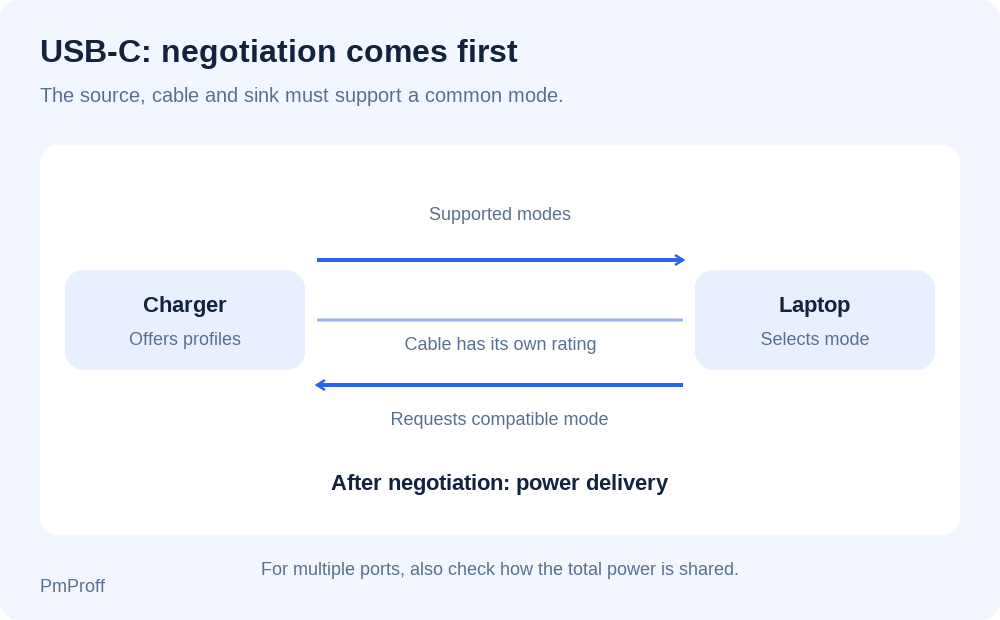
USB-C describes the connector. Power Delivery is the protocol for negotiating power. For a laptop to receive the power it needs, the charger, cable and laptop must all support the required mode. A 100 W label on a charger does not mean each port can deliver 100 W.
How devices negotiate power
The source advertises the modes it supports and the receiving device selects a compatible one. Without the required profile, charging may be slower or insufficient to power the device under load. USB-IF explains Power Delivery and its extension to 240 W. This is a capability of the standard. Individual USB-C ports have their own limits.
Check the profiles as well as the wattage
For example, 20 V × 3 A gives 60 W. If a device needs this specific mode, a total rating of “60 W” at other voltages cannot confirm compatibility. If your phone uses PPS, check that both devices support the required mode. Use the model’s specifications as well as the fast-charging name.
| Stage | What to check |
|---|---|
| Charger | Profiles for the port you intend to use |
| Cable | Permitted power and mode |
| Receiving device | PD / PPS support and power requirements |
| Multiple ports | Power allocation table |
Cables have limits too
The cable must support the required current and power mode. USB-IF sets cable requirements and specifies how to label their power ratings. Power rating and data rate are separate specifications. A fast-charging cable may be unsuitable for a high-speed SSD or a monitor. Thickness and colour are unreliable indicators of capability.
What happens when several ports are in use?
A multiport charger may redistribute its total power budget. Check the table for each combination you expect to use: laptop alone, laptop with phone, or all ports at once. Connecting another device can trigger renegotiation. Test this separately if your equipment cannot tolerate interruptions.
Checking a charger for your laptop
Start with the laptop manufacturer’s recommended power requirements. Check the profile of a single port, the cable and the power allocation when charging a phone at the same time. Then check whether the laptop battery holds its charge under your usual workload. A charging icon can appear even when the source supplies less power than the running system consumes.
Checks before choosing
- Check the required voltage and current.
- Check the cable and combination of ports.
- Test charging under a realistic load.
USB-A, vehicle connectors and shared power budgets
USB-A with Quick Charge and USB-C Power Delivery negotiate power differently. An 18 W label next to a USB-A port does not guarantee that power for every phone. The phone and cable must support the charging method. Qualcomm explains Quick Charge. For USB PD, check the profiles of both devices.
A vehicle charging input takes power into the power station. A DC output supplies a connected device. Even if the connectors look alike, the input and output are not interchangeable. Match the voltage range, polarity, current and exact plug type. A combined vehicle/PV input does not necessarily support both sources at once.
The number of devices that can charge simultaneously tells you how many connections are available. It does not guarantee maximum power at every port. For example, two DC outputs with a combined 120 W limit share that budget. Adding AC sockets does not increase inverter capacity either. The output interface specifies the connection method. Check the electrical limits separately.
Frequently asked questions
Will any USB-C port charge a laptop?
No. The port may lack the required function or power profile.
Does a 240 W cable always transfer data quickly?
No. Check the data rate separately.
Will a 100 W charger supply 100 W to each of two devices?
Not necessarily. Check the power allocation table.
In brief
Check that the source, cable and receiving device share the required mode. Then check the power budget with all intended ports in use.