
Specifications and technology / Video surveillance
H.264 and H.265 specify how video is compressed. They affect network bandwidth, storage and playback requirements. Resolution, frame rate and optical quality remain separate specifications.
Check codec support throughout the system: the camera, recorder, app and device you will use to play recordings.
What a video codec does
An uncompressed sequence of frames would require a very high data rate. A codec reduces it by exploiting repeated information and simplifying detail within acceptable limits. H.264 is also called AVC, and H.265 is called HEVC. Either codec can carry the same frame dimensions. Axis on video surveillance compression.
Choose settings that preserve the detail the camera is there to capture. Include movement in the area of interest in your test recording. An empty, stationary corridor tells you little about motion detail.
H.264, H.265 and proprietary modes
| Symbol | What to check |
|---|---|
| H.264 / AVC | Profile, resolution and client support |
| H.265 / HEVC | Decoder, NVR and app compatibility |
| H.264+ / H.265+ | Proprietary optimisation conditions and compatibility |
| Smart codec / Zipstream | Which algorithms are enabled and how they affect recordings |
H.265 can deliver the required quality at a lower bitrate. The actual savings depend on the scene and implementation, so a single percentage will not apply to every camera. Check compatibility, particularly with older recorders and clients.
A plus sign in a vendor’s codec name can indicate a proprietary mode. Hikvision, for example, describes H.265+ as its own optimisation for surveillance scenes. Hikvision technical guide to H.265+.
Why a recording may exist but fail to play
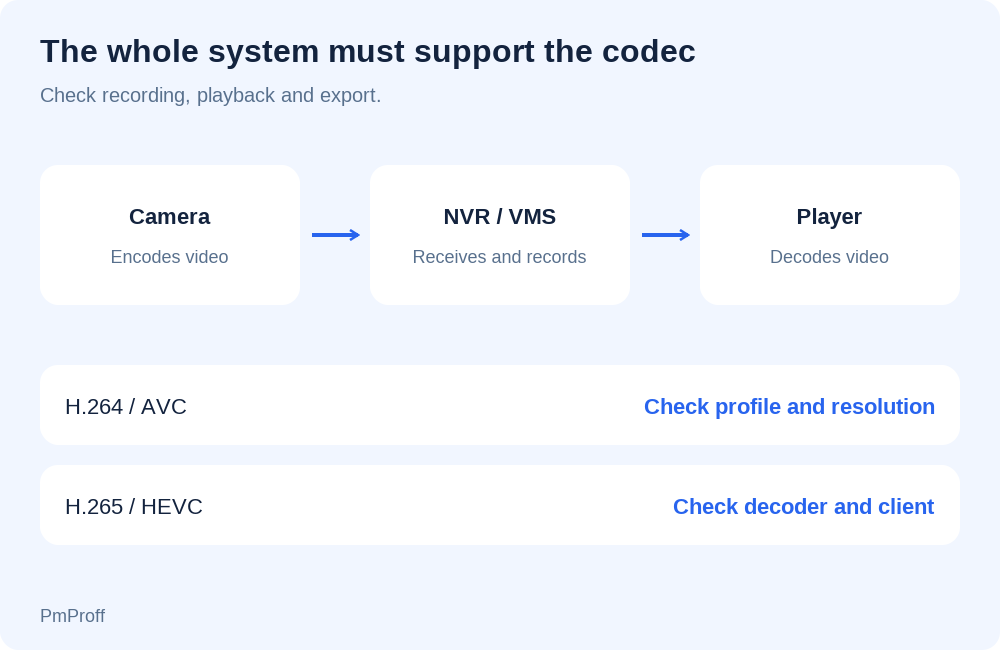
An NVR may accept a stream that a particular browser or player cannot decode. After adding the camera to the NVR, test live video, recordings and exported files on the devices you actually use.
A substream is often used for grid views or slow connections. Before judging the main recording by a small preview window, identify the stream profile currently displayed. Stream counts and supported combinations vary by model.
Codec and bitrate are separate settings
Bitrate measures data per second. Two recordings with the same actual average bitrate and duration will occupy approximately the same space regardless of codec. More efficient compression can maintain the required quality at a lower bitrate.
With variable bitrate, the data rate responds to scene complexity. A maximum bitrate limit helps size the network, but it can affect image quality in demanding scenes. For the differences between VBR, MBR and ABR, see Axis on bitrate control.
Estimating recording storage
For a constant stream, use this approximation: GB per day ≈ Mbps × 10.8. This assumes 1 GB = 10⁹ bytes and 24 hours of recording. It estimates video data only, excluding audio, overhead and disk headroom.
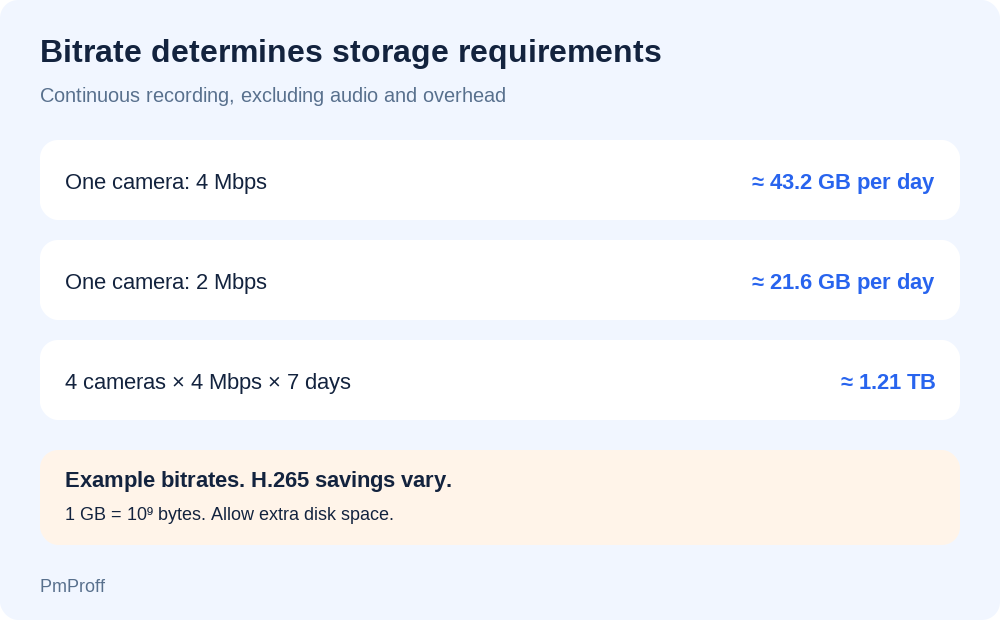
For example, four cameras averaging 4 Mbps each produce about 1.21 TB of video in seven days. When selecting a disk, also account for usable capacity, other data, headroom and the actual recording schedule.
Inspect faces, moving objects and night scenes in the saved recording. A clear still frame from daylight hours does not establish quality throughout the day.
Testing recording settings
- Check codec support on the camera, NVR and clients.
- Set the required resolution and frame rate.
- Record the same scene using different settings.
- Compare detail and actual storage use across modes.
- Test night recordings and file export.
Frequently asked questions
Does H.265 always use half the storage?
No. Savings depend on the scene, codec implementation and settings. Use a measured or well-founded estimate of average bitrate to calculate storage.
Does H.265 increase camera resolution?
No. The codec compresses video. The selected imaging mode determines the pixel count.
What if I lose the picture after changing codecs?
Check decoding support on the client and recorder. If necessary, restore a compatible mode in the camera interface and test the entire path again.
Choose the codec based on compatibility and a test recording. Calculate storage from bitrate and judge image quality by the detail that matters.