
Specifications and technology / Networking
Routers, access points and mesh systems serve different roles. A router connects networks, an access point connects wireless clients, and a mesh system coordinates several compatible nodes.
Good Wi-Fi needs both a reliable link to the phone and a reliable path from the access point back to the main network. That second link often determines performance in a distant room.
What each device does
| Equipment | Primary role | When to consider it |
|---|---|---|
| Router | Routes traffic between the local and external networks, often with built-in Wi-Fi | You need the main device for your network |
| Access point | Provides Wi-Fi access to an existing network | You already have a router and need more coverage |
| Mesh system | Coordinates multiple compatible nodes | Several rooms or floors need coverage and centralised management |
A home Wi-Fi router typically combines several functions. A mesh node may also act as the main router or an access point, depending on model and mode. For example, TP-Link describes the differences between Router and Access Point modes for Deco.
What is backhaul?
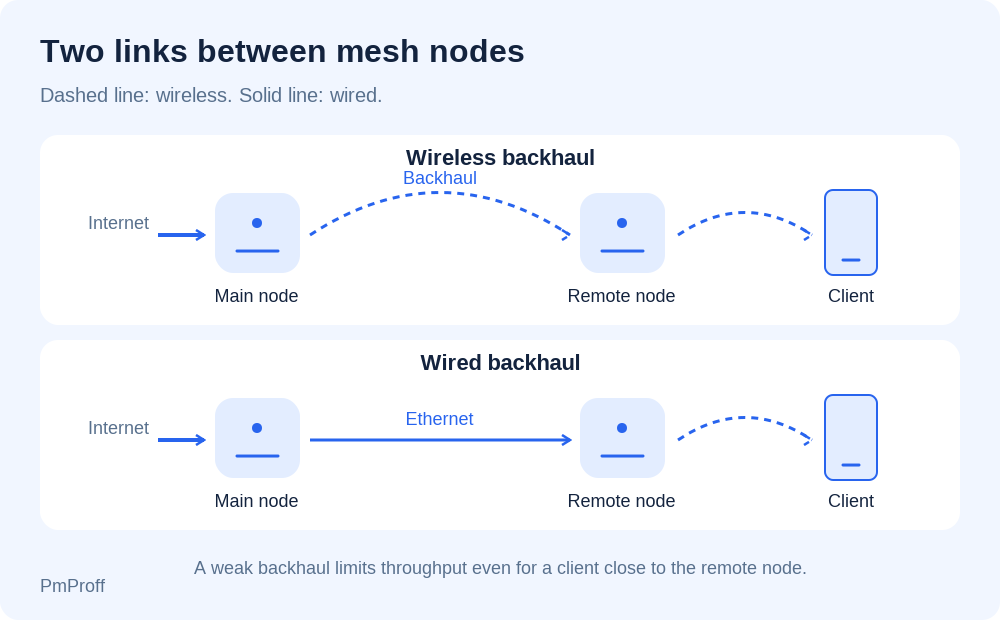
Backhaul is the link that carries traffic from a node to the rest of the network. It can be wireless or wired. A strong signal from a phone to a satellite node does little good if the satellite has a weak connection to the main node.
Walls, distance, interference and the radio airtime shared by clients and nodes affect a wireless backhaul. A dedicated band can help, but these conditions still matter. Wired backhaul replaces the wireless hop between nodes. Other system limits remain.
Where to place an additional node
A wireless satellite needs a good upstream link, so avoid placing it where the main network signal is already absent. Start partway between the main node and the target area. Check backhaul quality in the app and measure speed at your workspace.
Use a floor plan as well as the coverage figure on the box. Mark structural walls, cabinets, floors and the places where people need Wi-Fi. Run Ethernet to the remote point if possible. Keep the node out of metal cabinets.
When to use access point mode
If an existing router already manages the local network, AP mode can extend Wi-Fi without creating another routed segment. Running a second router in router mode behind the first can create double NAT, complicating some inbound connections.
AP mode may disable some mesh system features, such as certain filters, DHCP or port forwarding. The main router then provides those functions if supported. Check the manufacturer’s feature list. Deco AP mode features.
Will devices switch seamlessly between nodes?
A single network name is convenient, but seamless roaming also depends on the client, system settings and supported mechanisms. Walk between rooms while using a video call or your actual application to test continuity.
A mesh label alone does not establish that different devices can join the same system. Check compatible product series and firmware. Client behaviour also matters when planning seamless coverage. See the Apple documentation on Wi-Fi roaming.
Use the manufacturer’s topology for the selected mode. A cable between the wrong ports or a duplicated path can create a network loop.
Planning the network
- Identify which device will act as the main router.
- Mark weak areas and possible cable routes.
- Choose wired or wireless backhaul.
- Check node compatibility and the features needed in AP or router mode.
- Test speed, latency and roaming between rooms.
Router and controller modes
Router mode routes traffic between networks. AP mode connects wireless clients to an existing network. Mesh describes a supported multi-node system. An access point controller manages compatible APs, while the APs provide the radios. Before changing modes, check which NAT, DHCP, VPN and guest network functions remain available. A list of modes does not imply simultaneous operation.
Frequently asked questions
Can mesh work without any cables?
Not always. The main node usually needs a connection to the ISP or an existing router, and all nodes need power. The link between nodes can be wireless.
Are two access points worse than mesh?
No. Properly planned wired access points can work well. Compare management, coverage, compatibility and the link back to the main network.
Does a small flat need three nodes?
Not necessarily. Start with placement and measurements. Extra nodes do not guarantee a better network.
Plan the links before choosing the node count. Reliable backhaul and good placement matter more than a mesh label alone.