
Specifications and technology / Video surveillance
A camera’s main stream and substream transmit the same scene with different settings. You can keep a high-quality recording while sending a lower-bandwidth stream to a phone.
Both streams come from the same camera and viewpoint. The video encoding parameters can differ.
What each stream is for
| Stream | Typical use | Priority |
|---|---|---|
| Main stream | Detailed recording, large viewing window | Required image detail |
| Sub-stream | Mobile viewing, multi-camera grid | Lower processing and bandwidth demands |
| Additional streams | Specific clients and use cases | Model-specific limits |
These are typical roles. The Hikvision network camera manual gives separate settings for each stream and lists restrictions on some additional modes. Check which stream your system actually records.
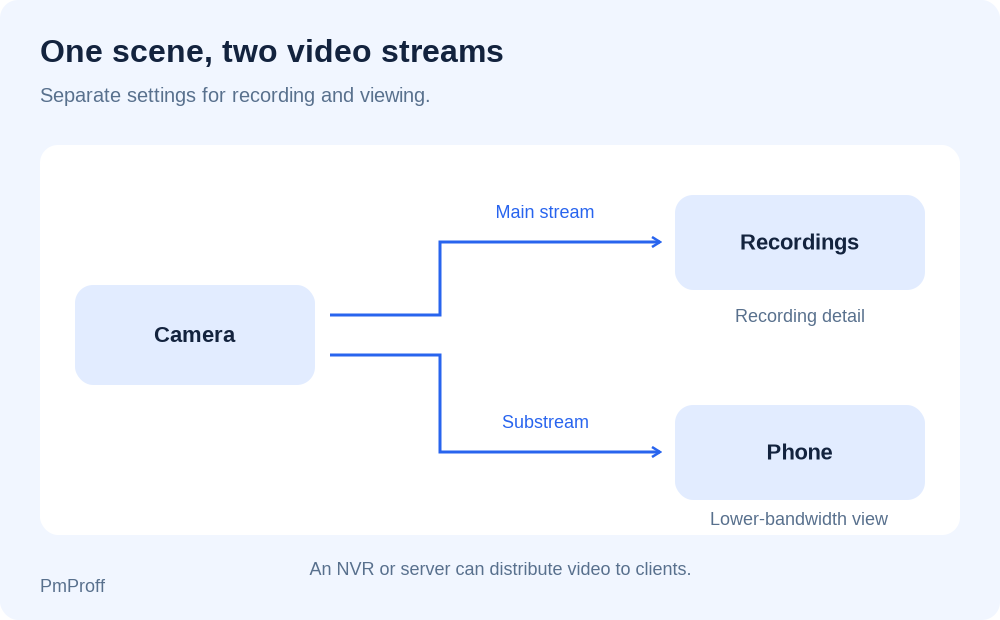
How to reduce viewing load while preserving recording quality
Suppose the main stream is set to 4 Mbps and the substream to 0.5 Mbps. Four substreams carry about 2 Mbps of video, compared with 16 Mbps for four main streams. These figures illustrate the arithmetic for those settings. Choose the bitrate for each camera separately and allow for protocol overhead.
Slow live viewing alone is no reason to reduce recording quality. First check which stream the app opens. If the recorder uses the main stream and its settings stay the same, adjusting the substream should preserve detail in the main recording. Play back a saved clip after making the change.
Three streams do not mean unlimited viewers
Encoding profiles, client connections and available bandwidth each impose separate limits. Requesting many unique combinations of stream settings can increase the camera’s workload. Axis’s video streaming guidance recommends checking the number of unique streams and aligning clients’ settings.
If one NVR receives the camera stream and serves other clients, the load differs from every phone connecting directly to the camera. Trace the actual path and check each link. Resolution and frame rate also affect encoding capacity, as shown in Axis’s guide to streaming performance.
What to configure separately
For the main stream, decide how much detail and motion the recording must show. For the substream, consider viewing window size, the mobile connection and the number of cameras open at once. Compare codec, resolution, frame rate and bitrate. See the guide to H.264 and H.265.
A grid view may automatically use the lighter stream and switch to the main stream when you enlarge a tile. For an example, see Hikvision Smart Wall settings. A sudden improvement in sharpness when expanding the image can be normal.
Practical checks
- Note which stream the recorder, phone and local monitor use.
- Compare a single-camera view with a grid under load.
- Test remote viewing over the mobile network.
- Play back and export a recording after changing the settings.
- Allow bandwidth headroom for motion as well as quiet scenes.
Frequently asked questions
Does a substream always have poor quality?
No. It has its own settings. It may show enough detail in a small window but too little for inspecting a small feature.
Can the substream be recorded?
It depends on the camera and software. Check recording support for the specific profile.
Why is HD slower on my phone?
HD may open the main stream. Check upload speed at the camera site, download speed on the phone and the resources of the devices involved.
In brief
Set separate requirements for recording and viewing. Check the actual stream settings and route as well as the stream name.