
Specifications and technology / Device management
An Android or iOS label or an app name does not guarantee the same features on every phone. Check control, live video, recorded footage, notifications and operation without an external internet connection separately.
Three ways to access a device
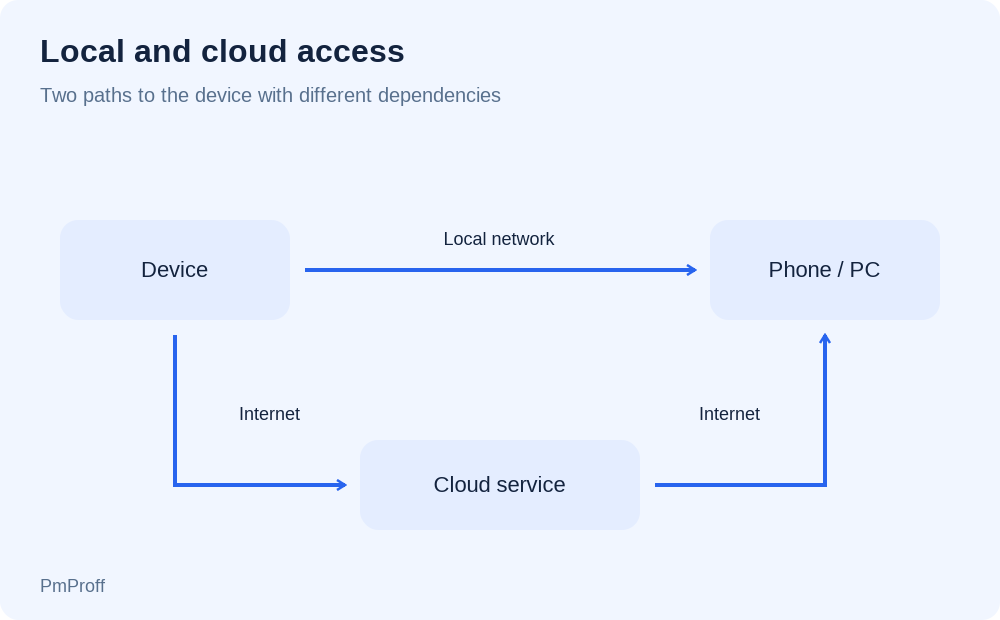
A local web interface opens at the device’s address. A mobile client is a separate app. Cloud access depends on a service and account. One device can support several paths with different capabilities. The AXIS Camera Station Edge documentation describes web access and client functions separately. This is one implementation. Other cameras labelled for iOS may differ.
When the browser opens the page but cannot play video
Displaying settings and decoding a stream are separate tasks. Compatibility depends on firmware, browser, platform and codec. For example, the Axis P3267-LVE manual lists H.265 limitations for that model’s web interface. Other browsers and versions may differ. If a listing mentions Internet Explorer or a plug-in, ask the manufacturer to confirm a currently supported access method before buying. Avoid unverified plug-ins from third-party sites.
| Check | Required result |
|---|---|
| Browser | Sign-in, settings and a compatible stream |
| App | Correct model and permissions |
| Recordings | Playback and export |
| Notifications | Event reaches the intended phone |
| Without internet | Known local capabilities |
Match the app to the exact model
Use the manufacturer’s documentation to find the app link. Verify the publisher, supported operating system and required firmware. A similar icon does not identify the right client. TTLock for locks, JBD BMS for battery systems and a video client perform different tasks. For each device, check local Bluetooth or Wi-Fi, cloud mode and any gateway requirement. Never enter credentials in a third-party app on the strength of a similar name.
Test push notifications separately
Trace a test event to the phone: the event occurs, the device sends it, the server processes it and the phone allows the notification. Check notification permissions, power saving, the target user and internet availability. Repeat with the screen locked and away from the home network. Receiving a notification does not prove video was recorded. Open the recordings and check the actual clip.
Transferring the device to another owner
Before installation, decide who owns the primary account and how to revoke installer access. Document transfer, account recovery and removal of former users. Check which functions are paid and what remains available during a cloud outage. Treat BMS or inverter protection settings as a separate privilege from viewing data. Leave safety-critical settings alone when testing an app.
Checks before choosing
- Find the official client for the model.
- Check live video, recordings and export.
- Test notifications away from Wi-Fi.
- Confirm ownership transfer and offline capabilities.
Frequently asked questions
Do Android and iOS support labels guarantee all functions?
No. Check the app version and the specific function.
Can I use only a browser?
Only if the model supports all the operations you need in your browser.
Does cloud access back up my recordings?
Not necessarily. Remote viewing and storing a backup copy are different services.
In brief
Test the complete use case beyond installing the app. Pay particular attention to permissions, recordings, notifications and ownership transfer.