
Specifications and technology / Cables
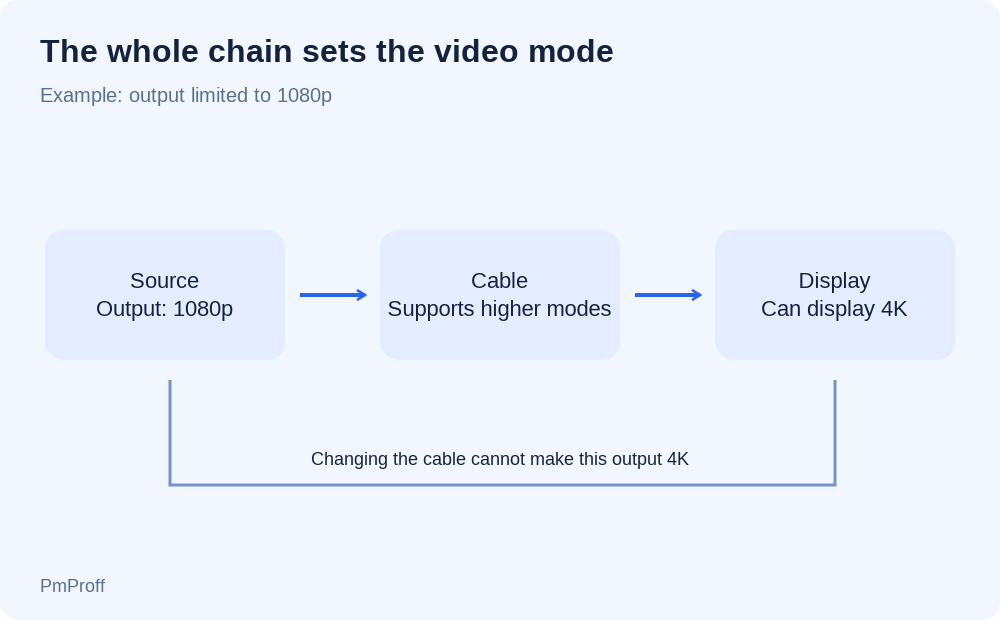
The source, cable and display must all support the video mode. A new cable cannot add features to an older output. A “4K” label without frame rate and colour parameters gives only part of the bandwidth requirement.
Interface version and cable category
A product may be advertised as HDMI 2.1. For a cable, check its official designation and evidence that it meets the specifications. HDMI Licensing Administrator describes the Ultra High Speed HDMI Cable for configurations up to 48 Gbps and the separate Ultra96 category for up to 96 Gbps. Before choosing a category, check the required mode and the capabilities of the ports. Many monitors do not need the highest category.
Resolution is only one parameter
Bandwidth also depends on frame rate, colour depth and colour signal format. Two modes both labelled 4K can therefore require different bandwidths. The Premium High Speed HDMI programme includes testing at the full 18 Gbps bandwidth. An advertised HDMI link rate in Gbps measures something different from video file throughput. For an NVR, also check its output resolution separately from the recording quality of its cameras.
| Stage | What to check |
|---|---|
| Source | Modes on the specific output |
| Cable | Category, length and direction |
| Intermediate device | Supported modes |
| Display | Modes on the specific input |
Length, active cables and intermediate devices
A cable category does not prescribe one maximum length for all cable designs. Check the exact part number and length. An active or optical cable may have marked Source and Display ends and specific power requirements. Follow its instructions. An adapter, splitter, extender or receiver adds another component that must support the mode. If a short direct connection works but the full run fails, check each link in turn.
Testing a new cable
Match the exact source and display modes. Check the cable model and certification label. Before concealing the cable, test the required refresh rate, colour, audio and recovery after power cycling. A black screen or intermittent flicker may come from port settings or an intermediate device as well as from the cable. Change one component at a time to identify the cause.
Checks before choosing
- Record the full video mode, including frame rate and colour settings alongside resolution (for example, 4K).
- Check the cable category and exact model.
- Test the entire run before permanent installation.
- Check restart behaviour and audio.
Frequently asked questions
Will 48 Gbps speed up NVR recording?
No. HDMI carries the local display output. Disk recording speed is separate.
Will a more expensive cable show finer detail in the same mode?
Not on its own. What matters is reliable transmission of the required mode.
Is an 8K label enough to choose a cable?
No. Check the full mode parameters and verified cable specifications.
In brief
Check the entire path from output to input. Select a cable rated for the required mode rather than the largest number on the packaging.